First Watch ‘Glance’
By Michael Hahn, May 2015
The Glance context is one of the core functions for the Apple Watch. It provides a simple display of timely information about a task at hand, like an upcoming meeting or workout status. The only user input is a screen tap, which launches the WatchKit app. From the developer perspective, launching the WatchKit app from a glance is a way to customize the launch behavior. This section describes how to display a simple message using a Glance.
Create an iPhone App
Apple Watch applications always start with an app on the Phone. For this procedure, create a new empty phone app in Xcode.
- Open Xcode. The Welcome to Xcode window is displayed.
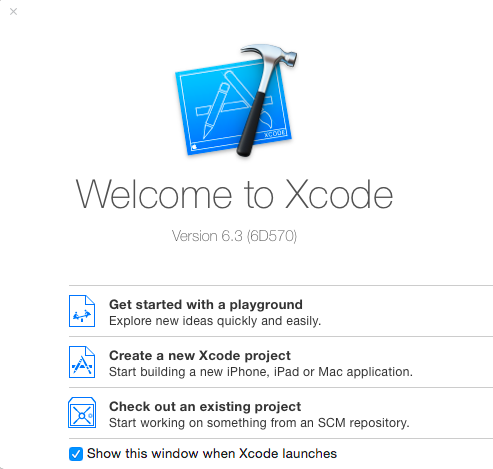
- Select Create a new Xcode project. The template choices are displayed.
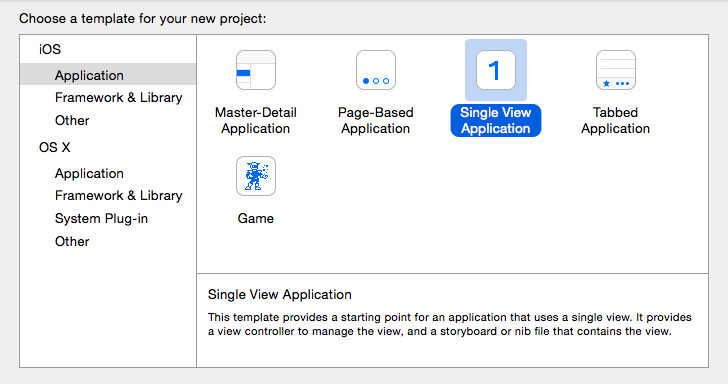
- Select iOS and Application, and then choose Single View Application. Click Continue. The target options window is displayed.
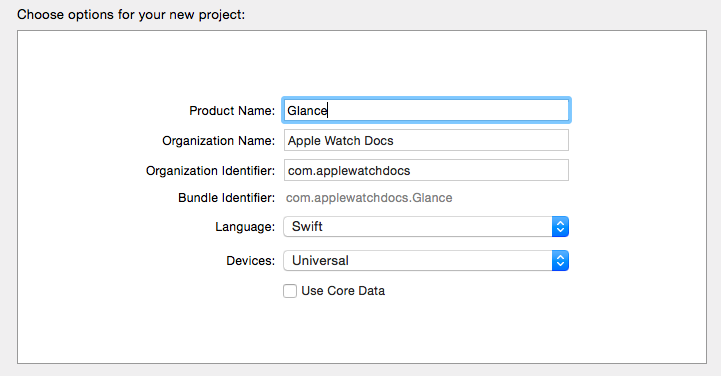
- Enter the project options for your project. As a minimum set the following properties.
- Product Name: Glance
- Organization Name: Apple Watch Docs
- Language: Swift
- Choose a location in your file system for your project and click Create. Xcode opens to the Glance target of the new project.
Add WatchKit Targets
Apple implements a watch app as two new targets, a WatchKit Extender and a WatchKit App. You add these to an existing iPhone app using Xcode.
- In Xcode, select File -> New -> Target.
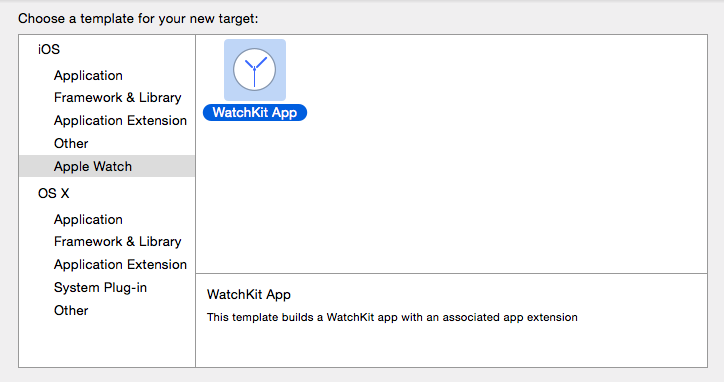
- Select Apple Watch under iOS, choose WatchKit, and Click Continue. The target options window is displayed.
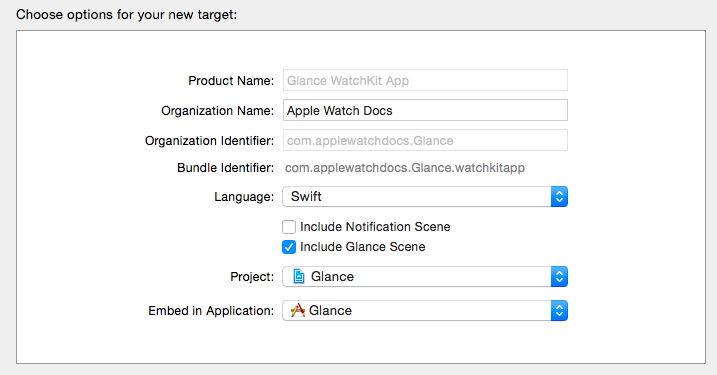
- Select Include Glance Scene. For simplicity, unselect Include Notification Scene. Accept defaults for the remaining options and click Continue.
- If prompted to activate a theme, click Activate. Xcode opens to the Hello WatchKit App target.
Add Glance Code
The default watch app only displays the time, so this example adds a text field to hold the Hello message and a button to change the hello message.
- In the Navigator, expand the Glance WatchKit App folder and click the Interface.storyboard. Locate and select the Glance interface graphic. This is where you build the Glance UI.
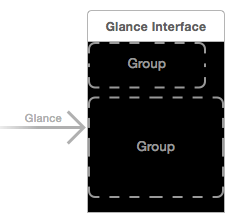
- From the Object Library, drag a Label to the upper group in the glance interface graphic. Optionally, drag an image object to the lower group in the graphic and initialize it with a local image.
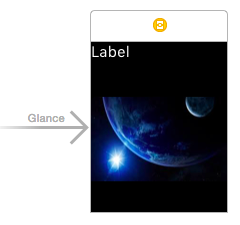
- Add an IBOutlet for the label to the glanceController. Visually, display both the storyboard and interfaceController. Control -> click the label and drag to the glanceController code, positioning the cursor near the beginning until an Insert Outlet appears. Stop there and a dialog opens where you can set the connection as an outlet and enter the name. Xcode then adds an IBOutlet variable for the label to the code.
class GlanceController: WKInterfaceController {
  @IBOutlet weak var label: WKInterfaceLabel!
      ...
- Modify the willActivate method to change the label to Hello World when the app starts.
override func willActivate() {
  // Set the label text
  label.setText("Hello World")
  super.willActivate()
}
Verify Operation
If you are using the emulator, you must change the emulation Scheme to display the Glance Watch Interface instead of the Main Interface. You cannot view Glance messages in the Main Interface. Xcode makes the necessary glance Scheme for you when it creates the WatchKit target. To use it, select the dropdown near the run/stop icons and choose Glance - Glance Watchkit App. If you are interested in viewing the actual setting, edit this scheme, select run, and view the Watch Interface setting.
In Xcode, start the emulator and view the watch. If necessary, select Apple Watch as the External Display under the Hardware menu. When you click the button the Hello World text is displayed in the label.

Example
For the sample Xcode project, see https://github.com/LarkspurCA/applewatchglance.